

How to use web fonts?


Introduction
We usually use Google Fonts in our design and development process. It's the easiest way to add fonts to a website, and Google's selection is excellent in both quality and compatibility. When we need custom fonts, we turn to Font Squirrel.
Here's a short guide to get you started with these tools.
Content
- How to add one or a few fonts with Google Fonts?
- How to use Google Fonts locally?
- How to use custom fonts?
- How to keep web fonts consistent across all platforms?
How to add one or a few fonts with Google Fonts
Go to Google Fonts.
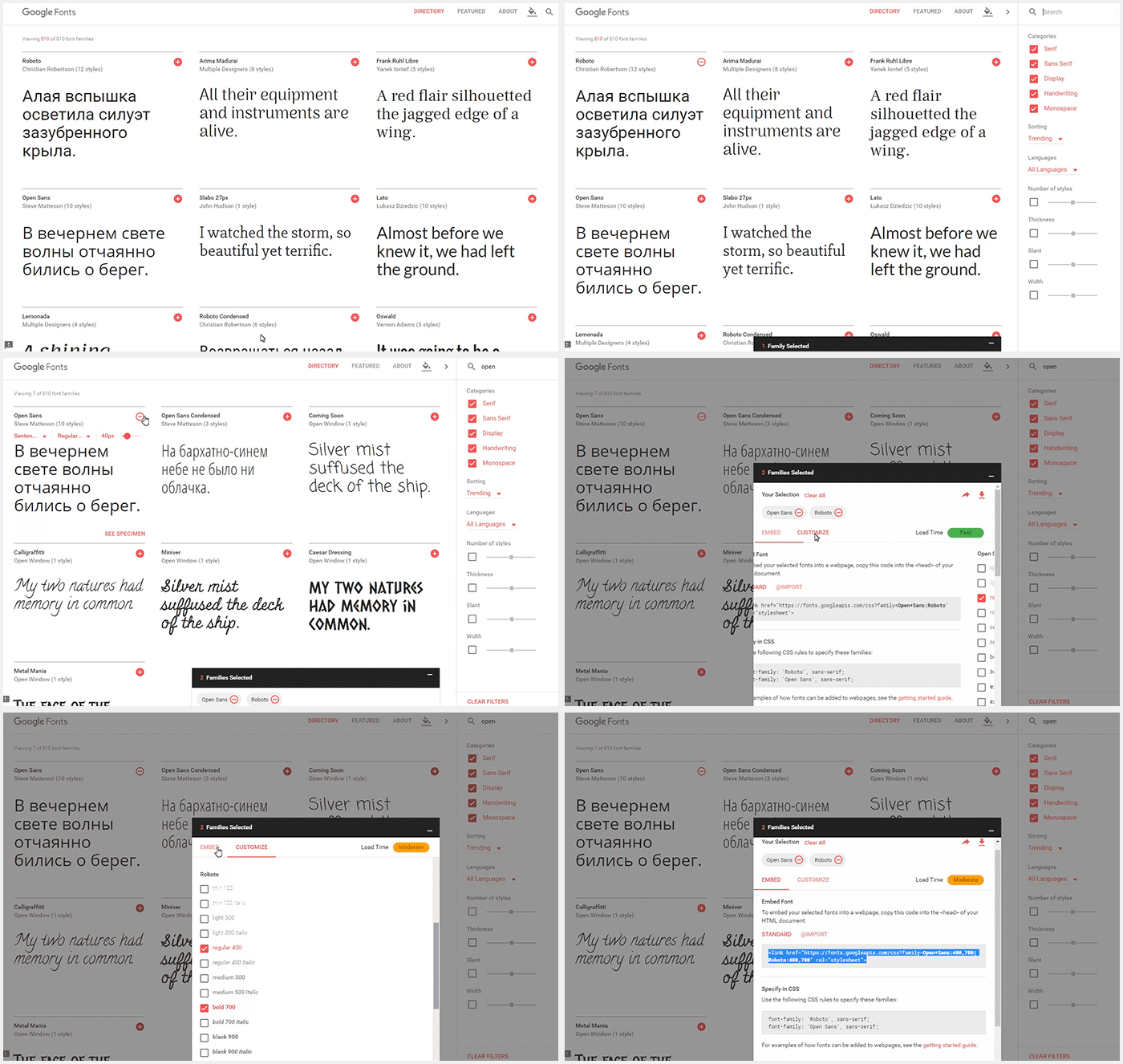
- Search for and add the fonts.
- Select only the styles and settings that are strictly necessary (Light, Regular, Bold). Don't use extended Cyrillic; in most cases basic Cyrillic is enough. The extended versions include symbols from uncommon alphabets with old and church letters (some of them are still used by settlements in Siberia).
- Copy and paste the link to the fonts you're going to use into your project.
<link href="https://fonts.googleapis.com/css?family=Open+Sans:400,700|Roboto:400,700" rel="stylesheet"/>
If you see more than two custom fonts with more than three different styles, check with your designer. It will hurt the page's loading speed.
How to use Google Fonts locally
We use google-webfonts-helper to download fonts that are already prepared from the Google Fonts database.
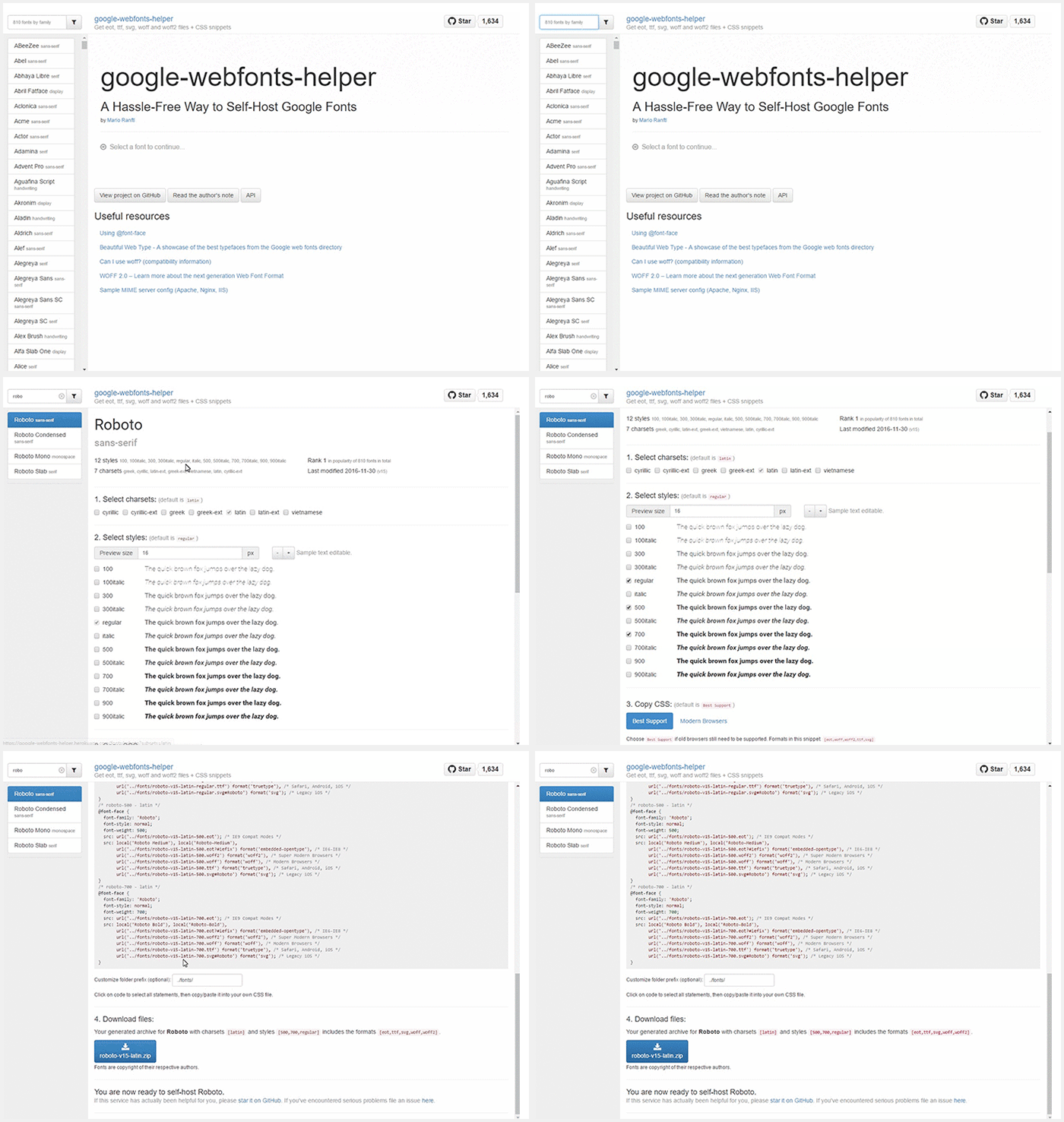
- Find the font.
- Choose the styles.
- Copy the CSS.
- Download the kit.
To use the fonts in a Ruby on Rails application, copy the files from the archive into the assets/fonts directory. Create an extra file, fonts.css.scss, in assets/stylesheets/application and paste the CSS from step 3 there. Finally, replace the fonts' path so it works with the asset helper.
@font-face { font-family: 'Poiret One'; font-style: normal; font-weight: 400; src: url(font_path('poiret-one-v4-cyrillic_latin-regular.eot')); /* IE9 Compat Modes */ src: local('Poiret One'), local('PoiretOne-Regular'), url(font_path('poiret-one-v4-cyrillic_latin-regular.eot?#iefix')) format('embedded-opentype'), /* IE6-IE8 */ url(font_path('poiret-one-v4-cyrillic_latin-regular.woff2')) format('woff2'), /* Super Modern Browsers */ url(font_path('poiret-one-v4-cyrillic_latin-regular.woff')) format('woff'), /* Modern Browsers */ url(font_path('poiret-one-v4-cyrillic_latin-regular.ttf')) format('truetype'), /* Safari, Android, iOS */ url(font_path('poiret-one-v4-cyrillic_latin-regular.svg#PoiretOne')) format('svg'); /* Legacy iOS */}
How to use custom fonts
Sometimes you'll need custom fonts that aren't on Google Fonts. That's when we like Font Squirrel. It's a very easy-to-use service for converting fonts to web format, and in expert mode you'll find plenty of conversion settings. Keep in mind, though, that you won't get exactly the same quality as with an original web font.

How to keep web fonts consistent across all platforms
You may have already noticed that fonts render slightly differently on macOS, Linux, and Windows. On macOS and Linux they look bolder.

To avoid this and make fonts look the same across all platforms, we recommend using font-smoothing: antialiased. The font-smooth CSS property controls how anti-aliasing is applied when rendering fonts. Antialiasing smooths fonts at the pixel level, instead of the subpixel level. Switching from subpixel rendering to antialiasing on light text over dark backgrounds makes fonts look thinner.
body { -webkit-font-smoothing: antialiased; -moz-osx-font-smoothing: grayscale;}
