

Handoffs Guide for Pixel Perfect Design. Part II


Grid
While you design, keep in mind how CSS grid systems behave. Take a look at Bootstrap Grid: it's a very popular CSS framework that covers all the common cases and that a developer can set up in no time. The main thing to understand is that CSS grid columns have a relative width and a fixed inner padding. Bootstrap Grid has 12 columns and 15px of inner padding by default, though you can customize it. You might argue that in Sketch you don't have relative values for columns, and you'd be right, because you don't need them there.
When you design an interface, you're always showing a static image, and of course with a fixed-size container. So, for example, if you have a 1920px artboard and a 960px container, each column will measure 80px, with 15px of inner padding and 50px of usable space. Read this article to learn how to build a proper fluid grid in Sketch.

When you design an interface based on a grid system like Bootstrap, you don't need to tell the developer the size of each column; it's enough to show them the column overlay. The developer will know which CSS classes to use, like .col-sm-2 or .col-sm-6, for example.

Many grid generators have their own way of building grids: a single gutter size between columns and a margin for the container. To understand it better, follow that guide or read the Bootstrap Grid section.

Responsive Design
Your main goal is to show the developer how each element will look at different resolutions and how the transition between them will work. Think in relative values, not fixed ones. Preparing a design at several resolutions, like 320x568, 1024x768, and 1920x1080, doesn't mean you're done. You still need to show and explain the transitions.
- What will happen to the columns and their content at each breakpoint?
- How will the container's size change at each resolution (and have you made sure the columns have relative values)?
- How will these changes affect the images? Have you prepared them for that behavior too? One example: you have a 200x200 image in the desktop version and decide it should take up 100% of the width on a 375x667 device. In that case, you'll need an image wider than 750px (high pixel density) so it doesn't look blurry on mobile.
Another typical mistake designers make is forgetting about height and only showing how elements behave when the container's width changes. Sometimes there are also elements with relative height, and you'll need to explain to the developer how they behave. You have to set the minimum or maximum height and the position of the elements they contain.
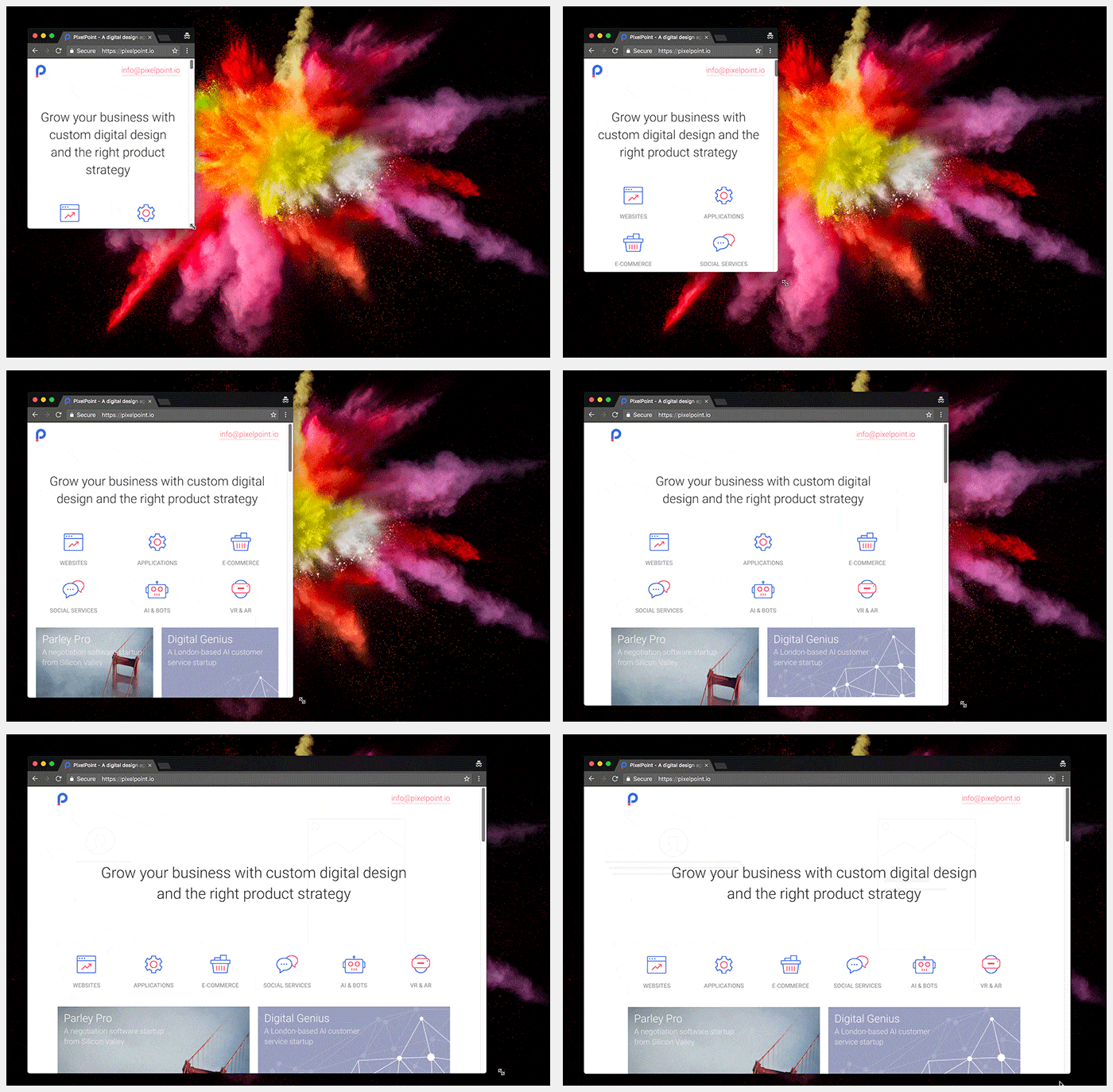
Use some basic breakpoints: 320x568, 375x667, 768x1024, 1024x768, 1280x768, 1366x768, and 1920x1080. And, of course, don't forget to test the design on mobile in landscape mode.
Here's an example of text in columns that looks good on desktop but causes problems in responsive. You need to define how you're going to solve it.

Don't Reinvent the Wheel
If you don't have time or aren't sure you can build small components from scratch (like a dropdown), ask your developer which library they recommend and polish an existing version. A typical case is reinventing the date picker. A lot of people think it's enough to draw a calendar with numbers, but you also need to think about:
- Whether you're going to mark days from the previous or next month.
- What hover effect each date will have.
- How you'll mark the current date.
- How you'll mark the selected date.
- How the year or month will be changed.

We live in a world where everyone is trying to launch their own startup. Sometimes it's better for the client to reach an MVP than to waste time and money on a designer set on being creative. Designers need to understand that they can use existing component libraries and polish them for different projects. This cuts down the often disproportionate costs of development work, even when custom solutions are still needed.
Animations and Interactive Prototypes
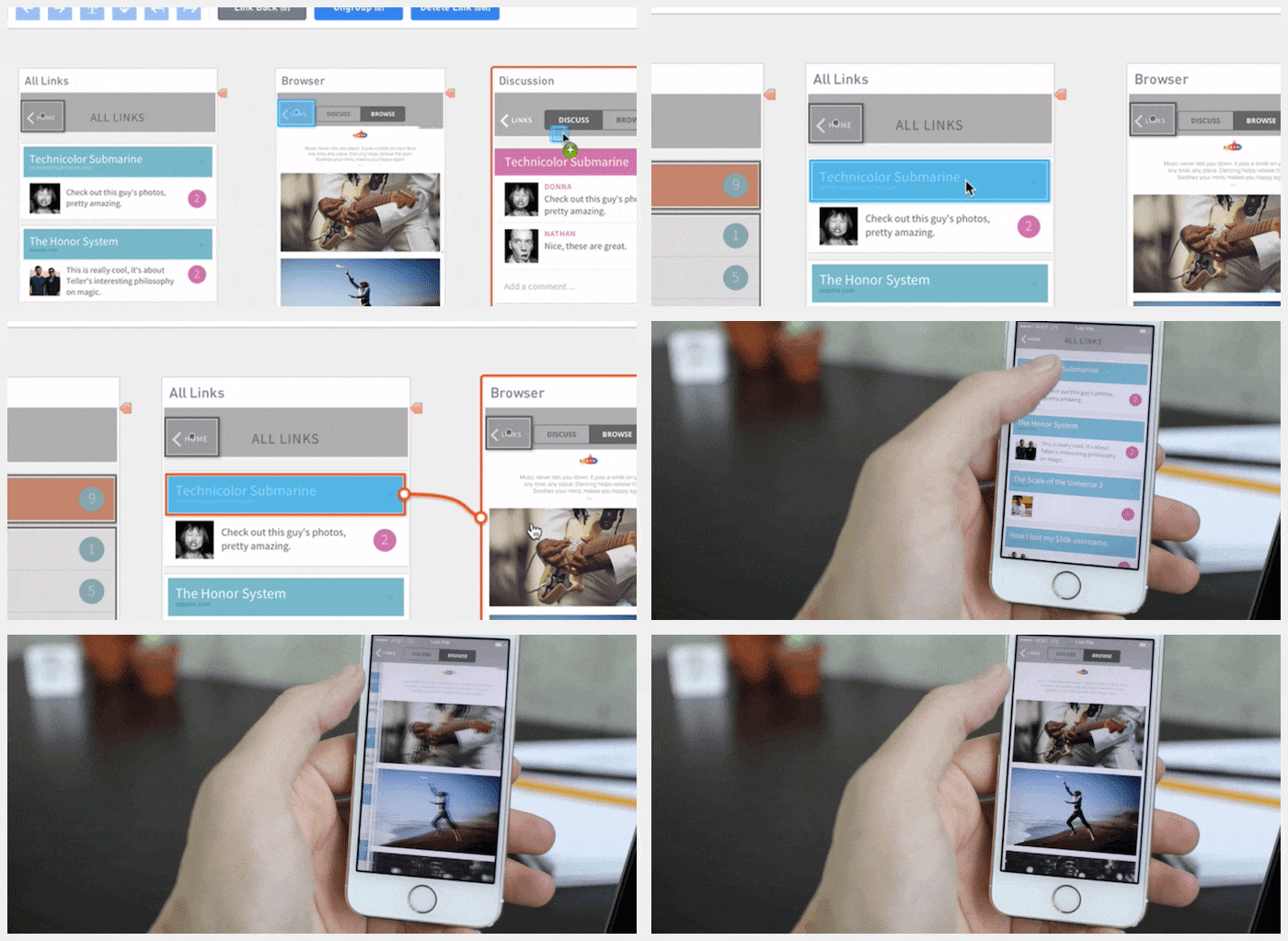
Instead of writing notes explaining how your animations should look or behave, show them. It's unlikely your description of the animation will be as good as the one you have in your head. Use InVision or Axure to prototype user journeys, and Principle, Framer, or Adobe After Effects for animations. You'll save yourself misunderstandings and headaches with developers and clients. It will also help you validate your ideas before implementation. Animations and prototypes look great in client presentations and make your designs feel even more special.
Part 1: software, naming, image optimization, sprites, SVG, and favicon
Part 3: UI kits, exporting, element states, line spacing, fonts, developers, and designers
